Charged with games, ready wherever you go
NorthSpin App packs the electric NorthSpin lobby into your phone — the welcome package up front, rows of fresh and trending slots, and a profile button right in the centre of the bottom bar.


What NorthSpin App is about
The neon-violet NorthSpin lobby, tuned for touchscreens and short sessions.
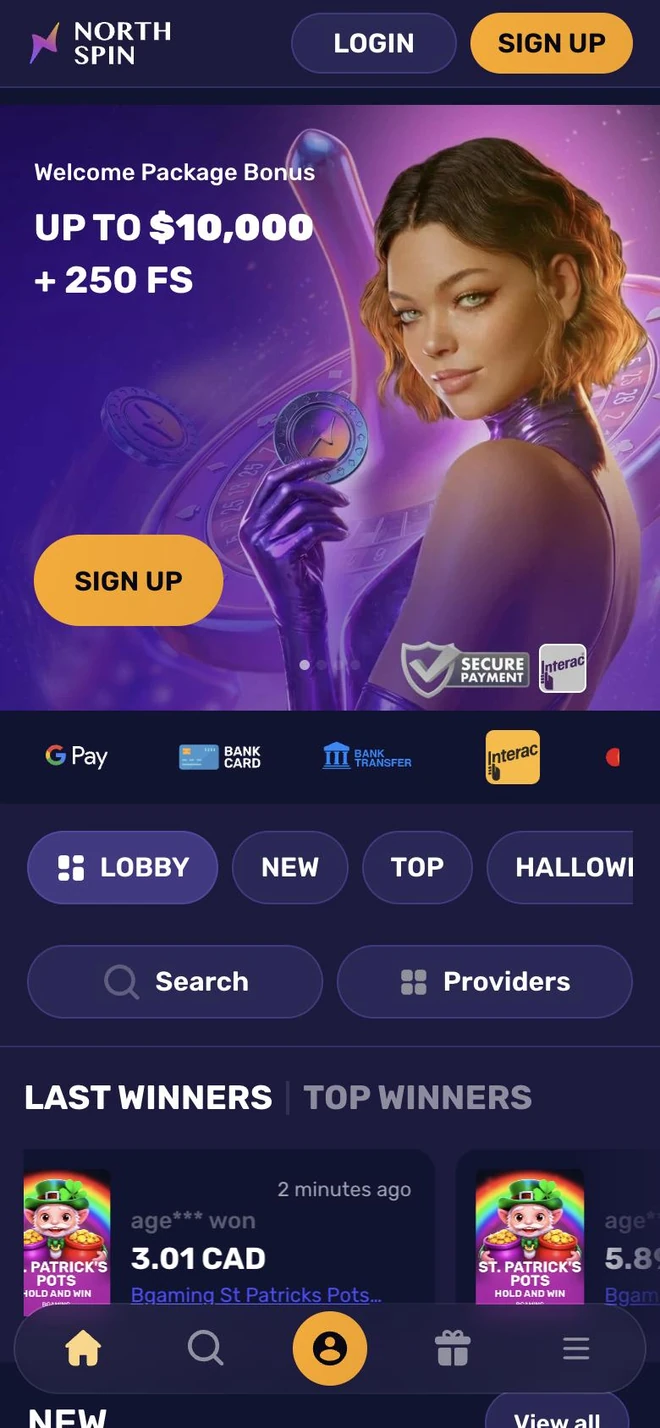
NorthSpin App keeps the bold look of the brand: indigo backgrounds, a purple-to-amber lightning logo and bright orange pill buttons. Text stays large and contrasty, and the floating bottom bar places home, search, your profile, gifts and the menu under your thumb.
First up is the welcome package banner with a Sign Up button and a secure-payment badge, followed by a sliding strip with Google Pay, bank card, bank transfer and Interac. Category tabs, a search field and a studio filter come next, and a ticker shows recent and biggest wins.
You can keep using your current NorthSpin profile: open the login window, type your email and password, and you are greeted with Welcome back. Switching the window to Sign Up lets newcomers register without leaving the screen.
Every version update refines the interface, refreshes the game rows and hardens security. Keep play recreational, pace yourself, and turn on profile limits whenever you feel they would help.
Strengths of the app
Six things that make NorthSpin on a phone feel quick.
Labelled game rows
Top, seasonal, Recommended and Megaways rows mark their titles with TOP or BOO! badges.
Filter by studio
The Providers button opens a searchable list of studios you can tick to filter the catalogue.
Winners ticker
Recent and top wins scroll by on the home screen in real time.
Local payment logos
Google Pay, bank card, bank transfer and Interac are listed right under the banner.
Gifts at the bottom
Promotions sit behind the gift icon of the floating bar, reachable from any screen.
Balance tools
Set deposit caps, play reminders and cool-off periods in your profile at any time.
A lobby that sparks right away
The home screen opens on a violet welcome package banner with an orange Sign Up button and a secure-payment badge. A strip of payment brands, category tabs, Search and Providers buttons and the winners ticker follow underneath.
- Welcome package banner and Sign Up
- Google Pay, bank card and Interac strip
- Recent and biggest wins ticker
Rows for every mood
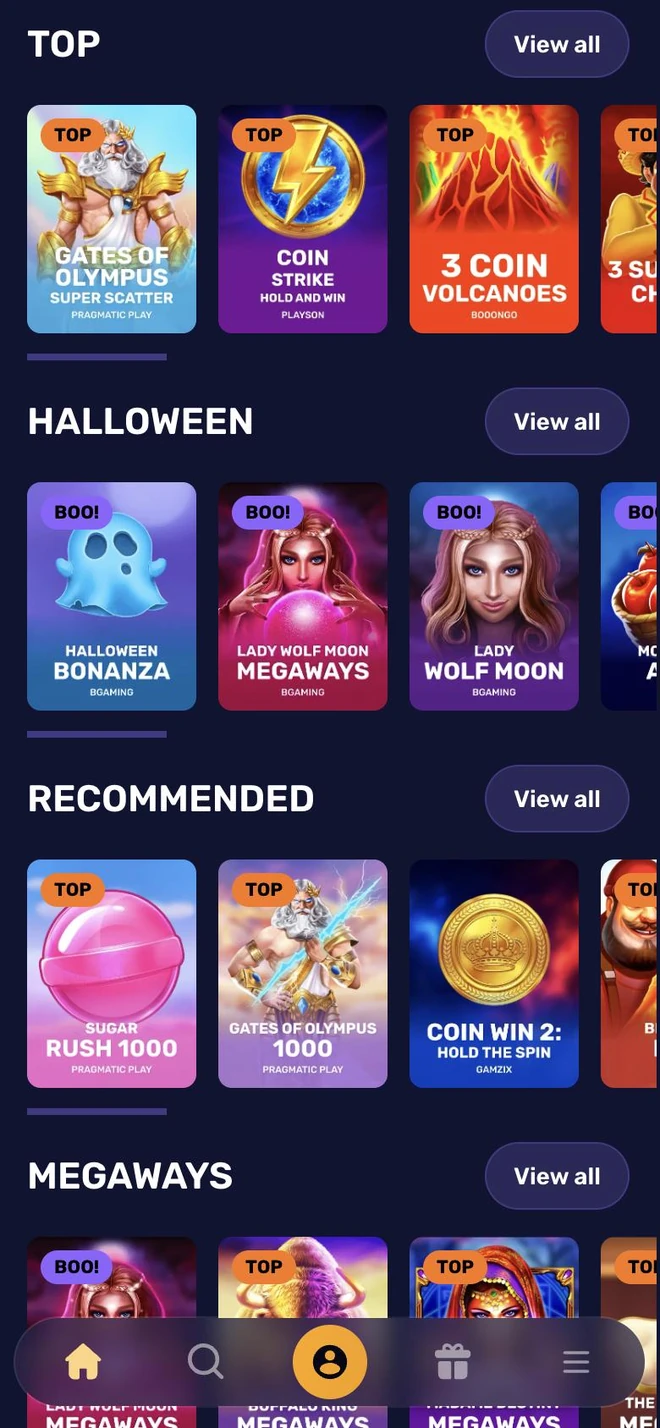
Scroll down for themed rows — Top, a seasonal Halloween set, Recommended and Megaways. Orange TOP and purple BOO! badges flag each cover, and a View all button sits beside every row title.
- Top, seasonal, Recommended and Megaways
- TOP and BOO! badges on covers
- View all next to each row
Back in with two fields
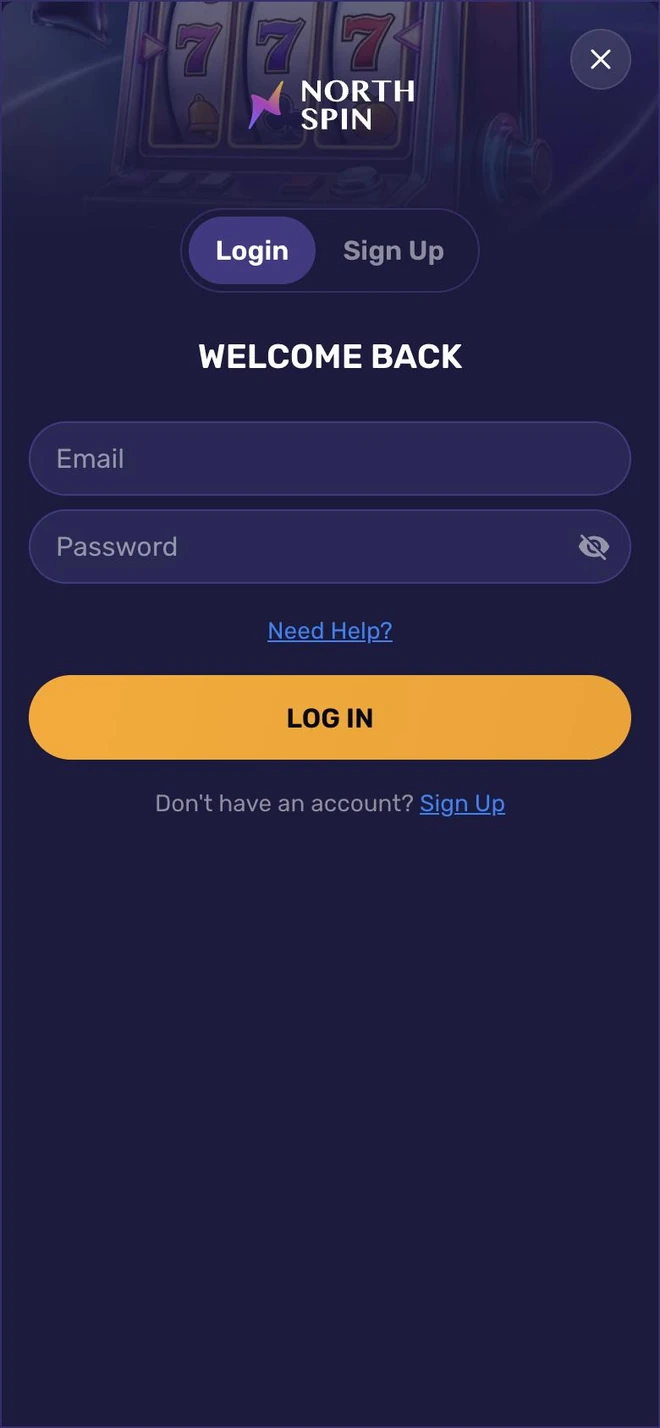
Under the lightning logo you choose between Login and Sign Up. The Welcome back form takes your email and password, the crossed-eye icon shows the password, and Need Help? is there if you are stuck.
- Login / Sign Up switch on top
- Email and password fields
- Need Help? above the orange button

Pings that make sense
Get a ping when a reward is ready, a new title drops or your cash-out moves along. Choose which pings you want and silence the others in settings.
- Rewards and new releases
- Cash-out and profile pings
- Turn any ping type off
Install steps
Three quick moves to your first spin.
Tap Install NorthSpin App
Use any orange Install button here and let your phone store the file.
Approve the installer
Run the saved file and accept the prompts. When the phone mentions an unknown source, allow it just for this file.
Sign in and spin
Launch NorthSpin App, log in with email or register, and start exploring the rows.
FAQ
How do I install NorthSpin App?
Hit an orange Install button on this page and follow the steps your device shows. The app is free.
Is my device supported?
Modern Android devices and iPhones, phones or tablets, run it well. Keep your system updated for best results.
Does my website profile work in the app?
Yes — enter the same email and password. No profile yet? Flip the login window to Sign Up and register.
Does the app cost money?
No. The install is free; deposits and wagers are optional and governed by the NorthSpin rules.
How do updates arrive?
A notice appears on launch whenever a newer version exists. The version currently available is noted in the footer of this page.
Is everything synced between devices?
Yes, your balance, game history and settings are identical on every device you sign in on.
Is signing in secure?
Data is sent over an encrypted connection and your password protects the profile. See Personal Data for the full details.
The screen froze — how do I fix it?
Force-close NorthSpin App, reconnect to the internet and check you have the latest version. If it repeats, reach out through the Support page.
Can I limit how much I play?
Yes: deposit caps, reality checks, cool-off periods and self-exclusion are in your profile. Balanced Play explains them and lists helplines.
Need more help? Contact support